

Summary #
Scratch Pad mode is a temporary workspace in MP Ember for trying ideas, pasting snippets, and running models without saving to a project. Your work exists in the current browser session only.
Why Scratch Pad Mode is Used #
Use Scratch Pad mode when you want to:
- Experiment with model snippets or code fragments
- Debug a smaller version of a larger model
- Import an example or file quickly without creating a project first
- Work when no project is open yet
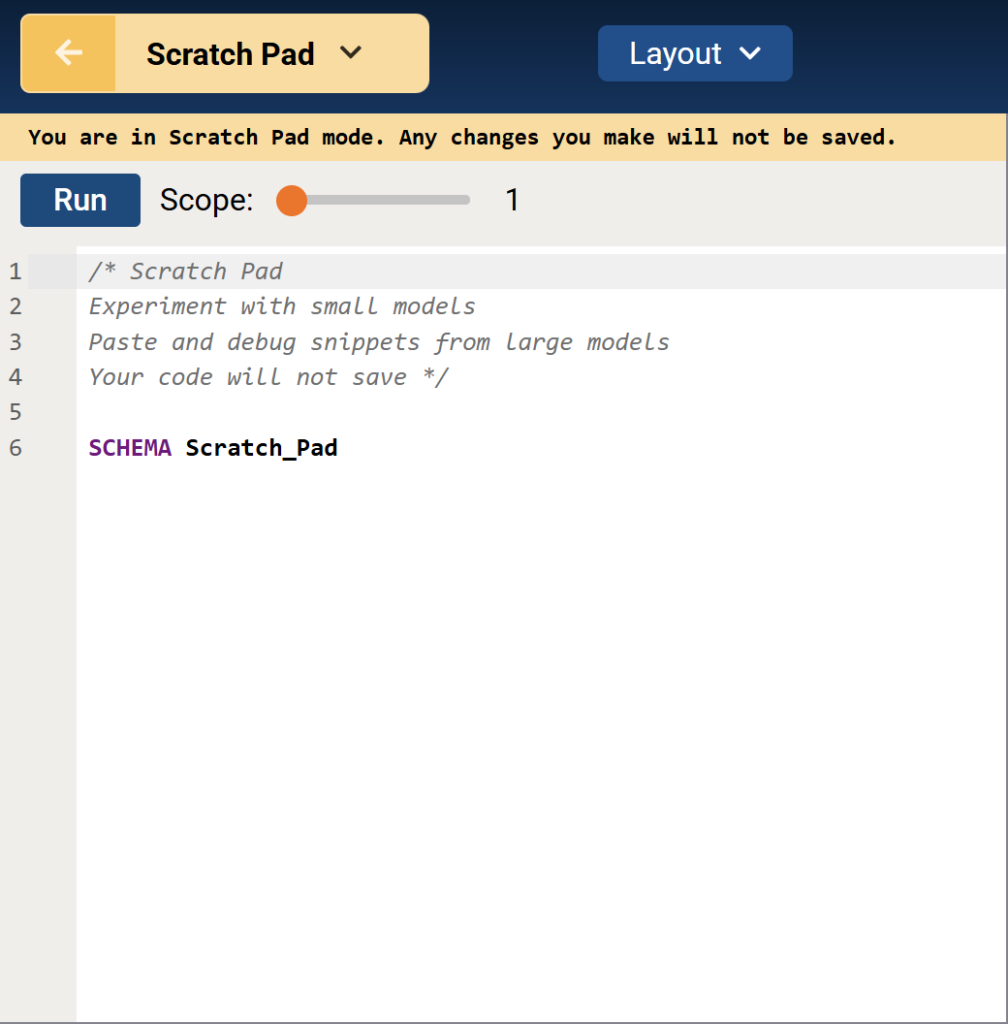
Scratch Pad mode does not auto-save your work to the server. The editor sidebar shows: You are in Scratch Pad mode. Any changes you make will not be saved.
Switching to Scratch Pad Mode #
- In the top-left of the workspace, use the mode toggle (sticky note icon in Project mode).
- The tooltip reads Switch to Scratch Pad mode.
- Click to enter Scratch Pad mode.
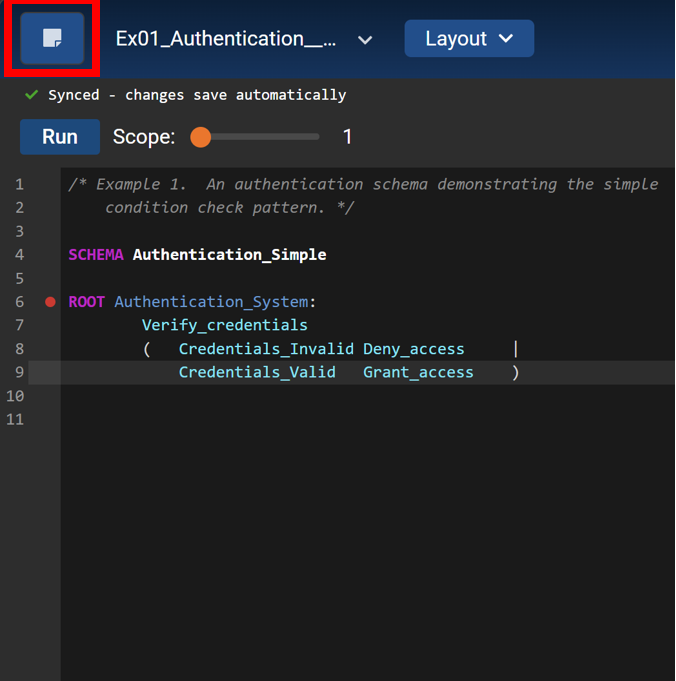
- In the top-left of the workspace, use the mode toggle (sticky note icon in Project mode).
- The tooltip reads Switch to Scratch Pad mode.
- Click to enter Scratch Pad mode.
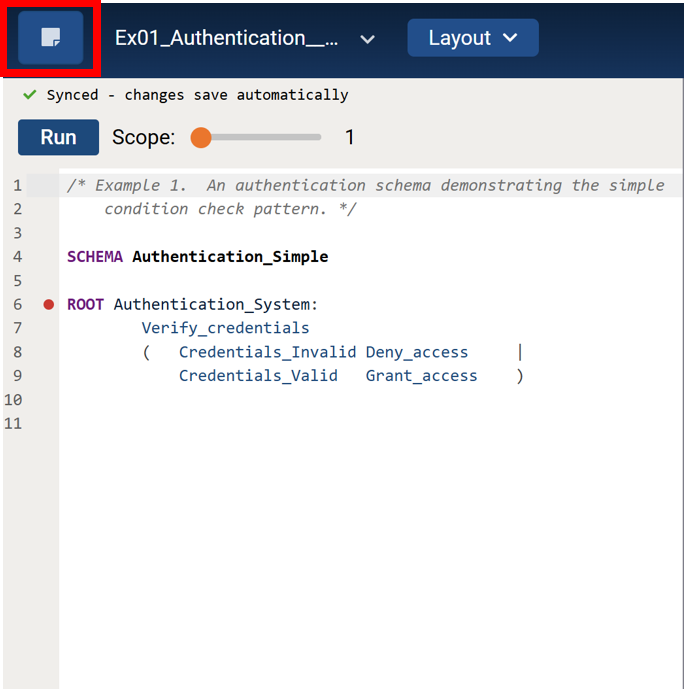
The header shows Scratch Pad instead of a project name. You can use the editor, run compile jobs, and view graphs the same way as in a project, but nothing is written to a saved project until you choose to save.
Return to Project mode: Click the mode toggle again (back arrow). The tooltip reads Return to Project mode. Your scratch pad content is kept for this browser session while you switch back and forth, as long as you do not refresh, log out, or clear site data.
If a compiler job is running in Project mode, you may need to wait for it to finish before switching to Scratch Pad.
If no project is open, you can still open Scratch Pad from the empty editor message: click the sticky note icon at the upper left.
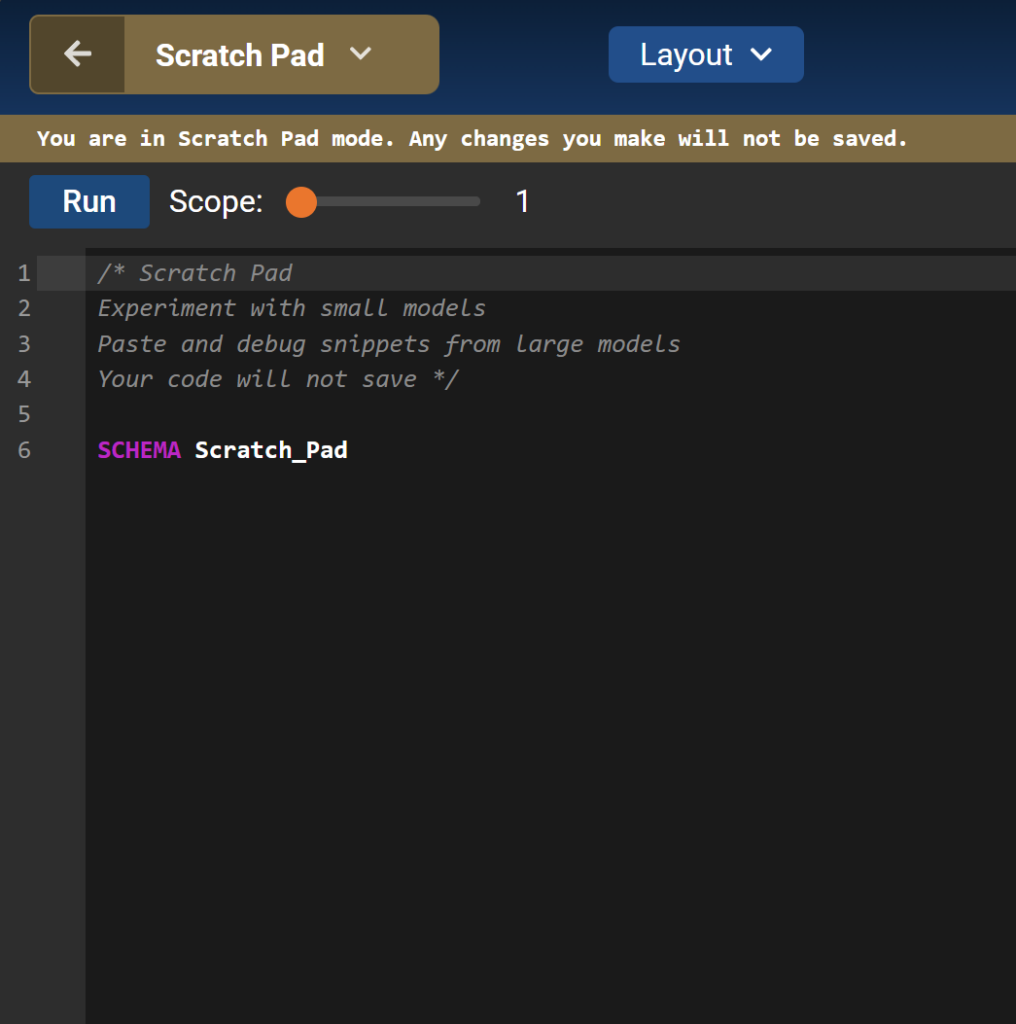
The header shows Scratch Pad instead of a project name. You can use the editor, run compile jobs, and view graphs the same way as in a project, but nothing is written to a saved project until you choose to save.
Return to Project mode: Click the mode toggle again (back arrow). The tooltip reads Return to Project mode. Your scratch pad content is kept for this browser session while you switch back and forth, as long as you do not refresh, log out, or clear site data.
If a compiler job is running in Project mode, you may need to wait for it to finish before switching to Scratch Pad.
If no project is open, you can still open Scratch Pad from the empty editor message: click the sticky note icon at the upper left.
Scratch Pad Menu #
| Menu Item | What it Does |
|---|---|
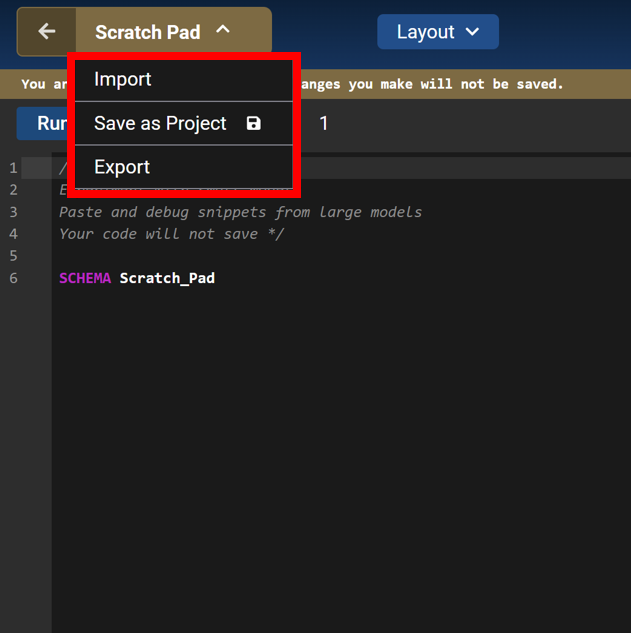
| Import | Load an example or upload a .mp / .wng file into the scratch pad (replaces current content) |
| Save as Project | Create a new saved project from your scratch pad model code |
| Export | Download .mp, .wng, or trace .png files to your computer |
| Menu Item | What it Does |
|---|---|
| Import | Load an example or upload a .mp / .wng file into the scratch pad (replaces current content) |
| Save as Project | Create a new saved project from your scratch pad model code |
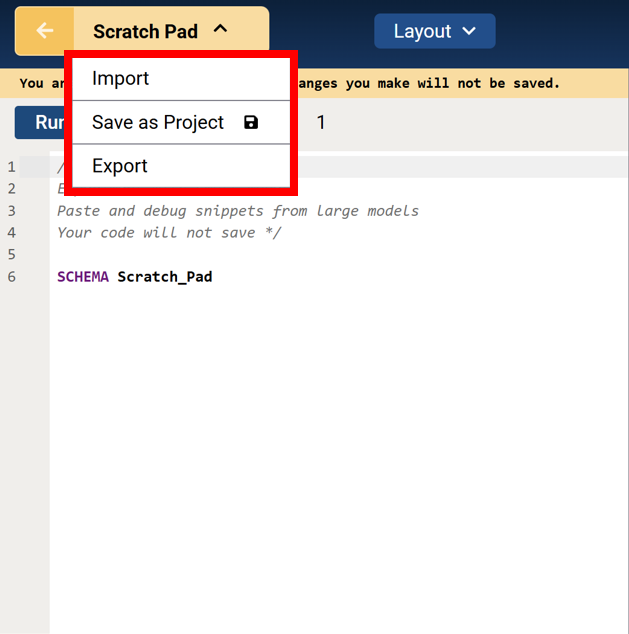
| Export | Download .mp, .wng, or trace .png files to your computer |
Import and Unsaved Changes #
If you have edited the scratch pad beyond its default starter content, choosing Import may show Discard Scratch Pad changes? Importing replaces your scratch pad and cannot be undone. Choose Continue to proceed or Cancel to keep your current work.
Save Scratch Pad Work as a Project #
When you are ready to keep your model, save it as a project:
- Stay in Scratch Pad mode.
- Click Scratch Pad in the top-left.
- Choose Save as Project.
- In Save this Scratch Pad as a Project, enter a Name and optional Description.
- Click Save as Project.
The app creates a new project with your scratch pad model code, opens it, and switches you to Project mode. From there, project auto-save applies (see Auto-save Projects).
Tip: Saving as a project stores your model code but does not preserve graph layout. If you need graph layout and related data preserved exactly as on the scratch pad, export a .wng file before saving, or run the model again in Project mode after saving so graphs are regenerated.
Unsaved Work is Not Kept Permanently #
Scratch pad content is not stored on the server like a project. Unless you Save as Project or Export, you can lose scratch pad work in the following situations:
| Situation | What Happens |
|---|---|
| Browser refresh (reload tab or page) | Scratch pad resets; unsaved edits are lost |
| Closing the tab or browser | Unsaved scratch pad work is lost (the app may warn you before you leave, but confirming still discards unsaved work) |
| Clearing browser cache or site data | Session state is cleared; scratch pad work is lost |
| Logging out | App state is reset; scratch pad returns to default content |
There is no “Saved” indicator in Scratch Pad mode—only the notice that changes will not be saved.
During one session (no refresh, no logout), switching between Scratch Pad and Project mode keeps separate scratch pad and project content in memory. That does not replace saving: refresh or logout still clears unsaved scratch pad work.
Default Scratch Pad Content #
New or reset scratch pad sessions start with a short starter model (including a SCHEMA Scratch_Pad line and comments explaining that the scratch pad is for experiments and that code will not save). Replace or import over this content as needed.
Practical Tips #
- Save early: Use Save as Project as soon as an experiment is worth keeping.
- Export a backup: Use Export → Export .mp before a long session or before clearing browser data.
- Import to try, export to share: Import examples or files on the scratch pad; export when you need a file on disk without creating a project yet.
- Do not rely on refresh: Treat the scratch pad like an unsaved document in a text editor without an autosave.
