

Summary #
In Project mode, MP Ember saves your model code automatically as you work. You don’t need a Save button — your changes are kept for you a moment after you stop typing.
Projects can also be edited by more than one person with access at the same time, and everyone sees changes as they happen. Auto-save applies only to saved projects in Project mode — not to the Scratch Pad, and not to project details you edit in dialogs.
Auto-save covers your code. It does not save graph layout — moving nodes in a trace changes only your current view (see the graph layout section below).
How Auto-save Works #
When you open a project in Project mode and edit the code:
- Your changes are captured automatically as you type.
- A moment after you pause, your work is saved to the project.
- During long editing sessions, your code continues to be saved periodically.
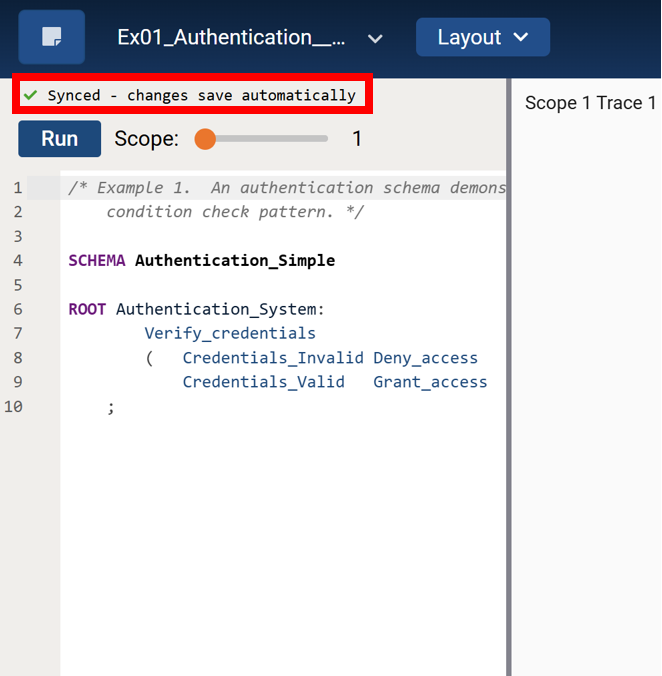
You never trigger saves yourself. As long as the editor shows the project is synced, your latest text edits are being saved.
When you open a project in Project mode and edit the code:
- Your changes are captured automatically as you type.
- A moment after you pause, your work is saved to the project.
- During long editing sessions, your code continues to be saved periodically.
You never trigger saves yourself. As long as the editor shows the project is synced, your latest text edits are being saved.
Save Status in the Sidebar #
In Project mode, the area above the run controls shows the current status:
| Status | Meaning |
|---|---|
| Connecting project sync… | Getting the project ready |
| Connected | Connected and finishing setup |
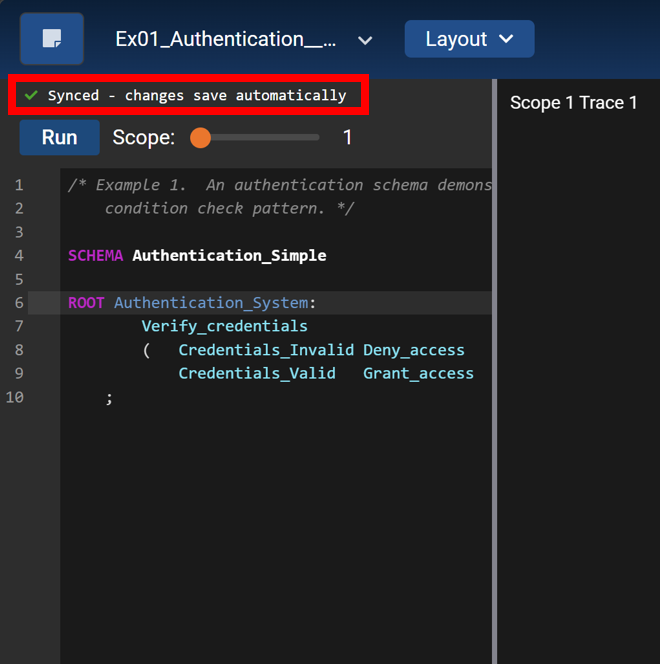
| Synced – changes save automatically | Your edits are being saved automatically |
| View only | You have view access; you can read but not edit |
| Offline | Not currently connected; edits aren’t being saved |
| (error message) | The project couldn’t connect for saving |
Treat Synced – changes save automatically as confirmation that auto-save is working. If you see Offline or an error, your most recent edits may not be saved yet.
How Often Auto-save Runs #
- Trigger: Any change to the project’s code.
- Timing: A couple of seconds after you stop typing.
- During continuous typing: Your work is still saved periodically, so long sessions don’t go unsaved.
- No manual step: Saving simply follows your editing — there’s no save button or fixed schedule.
What Auto-Save Stores #
Auto-save keeps your model code (text editor content), the time the project was last updated, and who last edited it.
Auto-save does not save compiler output or changes to the graph layout.
Graph Layout is Not Saved #
Moving nodes in a graph changes only your current view. It is not saved with the project, and it is not restored later:
- If you reload or reopen the project, the graph returns to its default layout.
- If you re-run the model, the traces are regenerated and any manual positioning is cleared.
- Manual node positions are not carried over between sessions.
If the exact arrangement of a trace matters, capture it another way — for example, export the trace as a PNG for a fixed image of what you see.
Editing with Others #
- MP Ember supports the option to share your projects with team members in the same organization.
- Anyone with edit access who opens the project can edit it at the same time as you.
- Everyone’s changes are combined automatically, and you’ll see others’ edits appear live.
- The project records who last edited it.
- People with view access can open the project read-only (View only) and cannot change the code.
Because everyone works in the same project, there’s no separate step to save your own copy — all editors’ changes are saved to the one project.
If you want to make temporary edits to a team project without auto-saving them, copy the project code into a new Scratch Pad view, make and test your edits there, and then when you are satisfied with your changes, copy your edits back into the project.
When Auto-Save May Not Save Your Changes #
Connection and Timing #
- Offline — While the status shows Offline, your edits aren’t being saved. If you refresh or close the tab before it reconnects, recent edits can be lost. Wait for Synced before leaving.
- Connection error — If the status shows an error, reload the project; edits made during the error may not be saved.
- Leaving too soon — If you close or refresh in the brief moment before a save completes, the last few seconds of changes may not be saved. Wait for Synced.
Access and Limits #
- View access — Viewers can’t save edits; the editor is read-only (View only). You need edit access to change code.
- Very large models — Extremely large code may fail to save.
Context #
- No project open — Auto-save doesn’t run; open or create a project first.
- Scratch Pad mode — Code is not saved. Use Save as Project or export instead.
Other edits #
- Project name, description, and other metadata (in Project Information) — Saved with that dialog’s Save, not by code auto-save.
- Scope without recompiling — The scope shown may not match what’s saved until a successful compile updates it.
- Graph node positions — Not saved at all; export a .wng to preserve layout changes.
Other Edits #
- Metadata-only changes (e.g., Project Name, Project Description in Project Information) are not auto-saved with code; use that dialog’s Save.
- Scope selector without recompiling — The scope shown in the UI may not match what is stored on the project until a successful project compile updates it.
- Graph-only changes — Layout changes are not auto-saved; use Export > .wng to save layout changes.
Practical habits #
- After an editing burst, check that the sidebar shows Synced – changes save automatically before closing the tab or logging out.
- If it shows Offline, wait for Synced before leaving.
- Run the model when you need compile output and scope saved with the project.
- Don’t rely on arranged graph layouts being kept. Re-running the model resets changes made to graph layouts. Before re-running the model, export a trace PNG if you need to preserve a specific arrangement as an image or a WNG file if you might continue to edit the graph layouts.
- Use Project Information → Save for name, description, and other metadata changes.
- When editing with others, expect to see their changes appear live.
