

Summary #
The Account page is where you manage your personal information, sign-in security, subscription, and organization memberships in MP Ember.
Open your account from the user menu: click your initials in the top-right of the workspace, then choose Account.
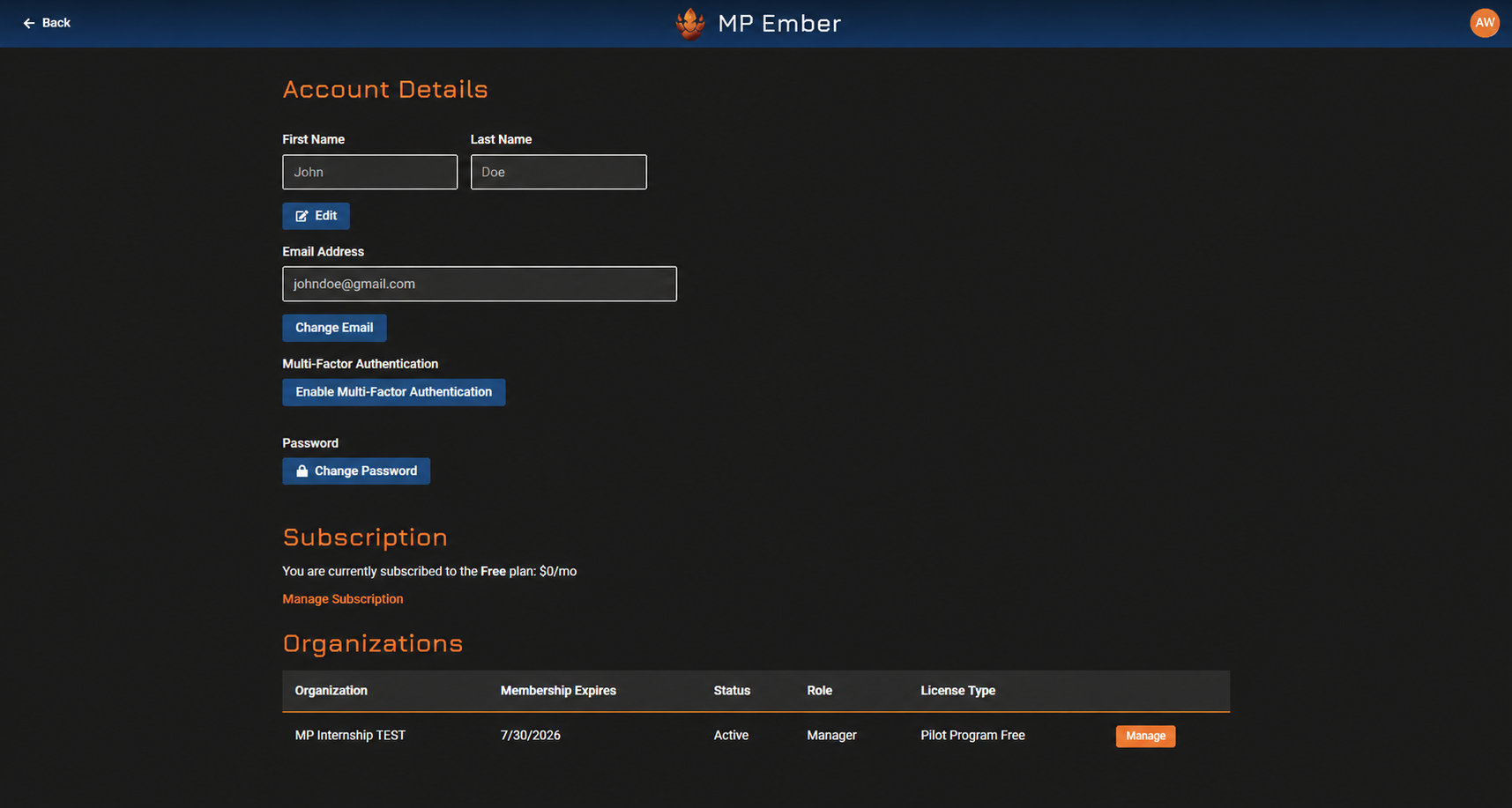
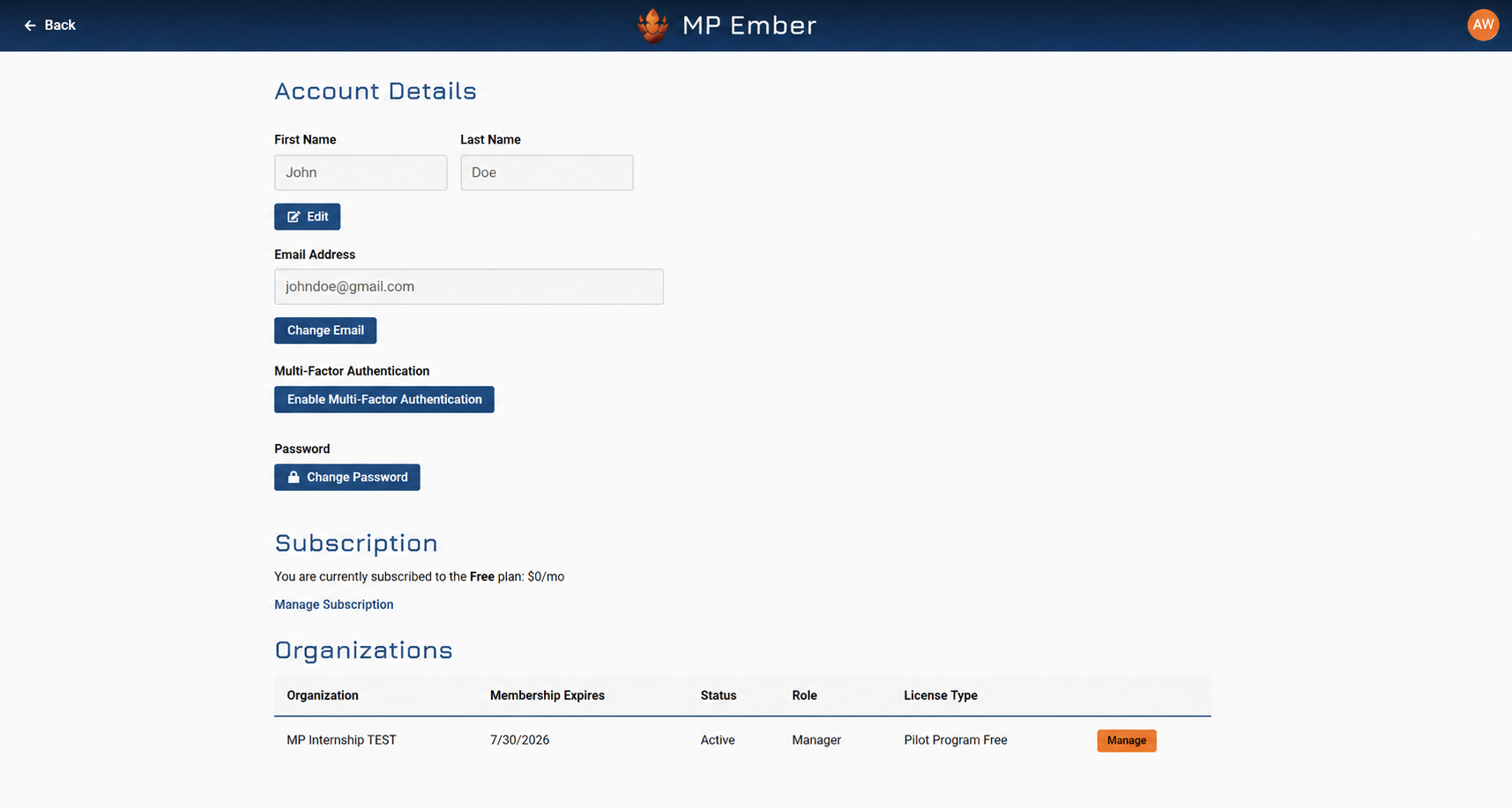
Account Details #
Your name as shown in MP Ember.
- In Account Details, click Edit.
- Update your First Name and/or Last Name.
- Click Save (or Cancel to discard).
A confirmation appears when your details are updated.
Email Address #
Your email is what you sign in with. Changing it requires confirmation so your account stays secure.
- Click Change Email.
- Enter your new email address and click Send Confirmation.
- A confirmation link is sent to the new address. Your current email stays active until you confirm.
- Open the link in that email to complete the change.
While a change is pending, the page shows “Email change pending” with options to:
- Resend Email — send the confirmation link again.
- Cancel Change — abandon the change and keep your current email.
Multi-Factor Authentication #
Multi-factor authentication (MFA) adds a second step when signing in, using a one-time code sent to your email plus single-use backup codes.
If your email is governed by a policy that requires MFA, the page shows that MFA is required, and you won’t be able to disable it.
Enable MFA:
- Click Enable Multi-Factor Authentication. A verification code is emailed to you.
- Enter the verification code and click Verify and enable.
- Save your backup codes when they appear — each works only once, and they are not shown again. Use Copy codes, store them somewhere safe, then confirm I have saved my backup codes.
Backup codes let you sign in when you can’t access your email.
After MFA is enabled, the page shows MFA is enabled and how many backup codes remain. You can:
- Generate New Backup Codes — replaces all existing codes (you’ll confirm with your password). Previous codes stop working.
- Disable Multi-Factor Authentication — turn MFA off by confirming your password (not available if your email requires MFA).
Some sensitive actions may prompt a Multi-factor verification step — enter the code sent to your email to continue.
Password #
Passwords are changed through a secure email link rather than directly on the page.
- Click Change Password.
- Click Send Password Reset Link. A link is sent to your email.
- Open the link and set a new password.
Subscription #
Shows your current plan:
- If subscribed, you’ll see the plan name and monthly price.
- If not, you’ll see that you’re not subscribed to any plan.
Use Manage Subscription to view or change your plan.
Organizations #
Lists the organizations you belong to, with:
- Organization name
- Membership Expires
- Status (for example, active)
- Role
- License Type
If you’re a manager of an active organization, a Manage button appears for it, linking to that organization’s management page.
Other Items in the User Menu #
The user menu (your initials) also includes:
- Managed Orgs — for organization managers (see the related article for more).
- About and Help.
- Logout — sign out of MP Ember.
