

Summary #
An organization in MP Ember groups people under one or more licenses (seats). If you accept an invitation to an organization, you’re a member of it. Some members are also managers, who can invite and manage other people in the organization.
This article covers:
- Seeing the organizations you belong to
- Joining an organization
- What managers can do and how to manage members
Roles #
| Role | What it can do |
|---|---|
| Member: | Belongs to the organization and uses its license |
| Manager: | Everything a member can do, plus add, edit, and remove the organization’s members (and manage its theme and examples) |
See the Organizations You Belong To #
- Open the user menu (your initials, top-right) and choose Account.
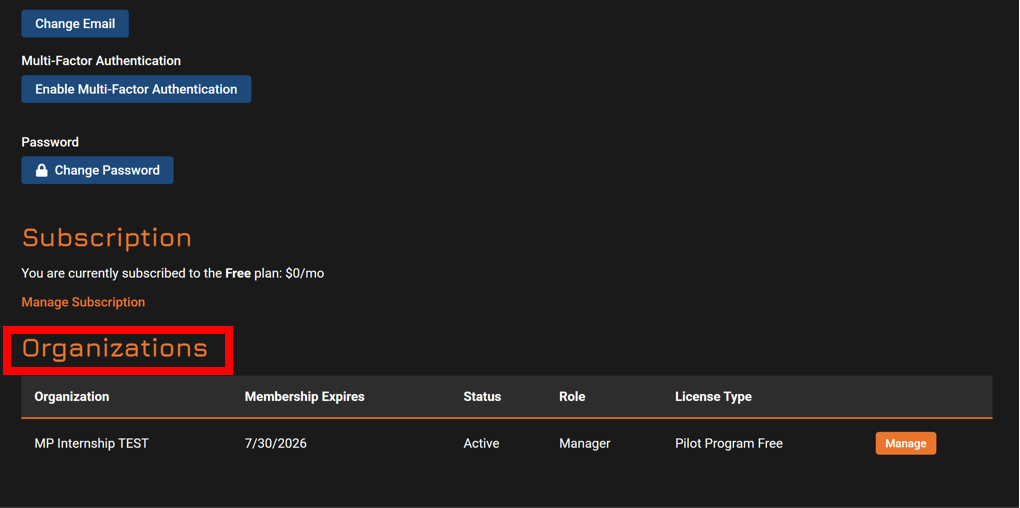
- Scroll to Organizations.
For each organization, you’ll see its name, membership expiry, status, your role, and license type. If you’re a manager of an active organization, a Manage button appears next to it.
- Open the user menu (your initials, top-right) and choose Account.
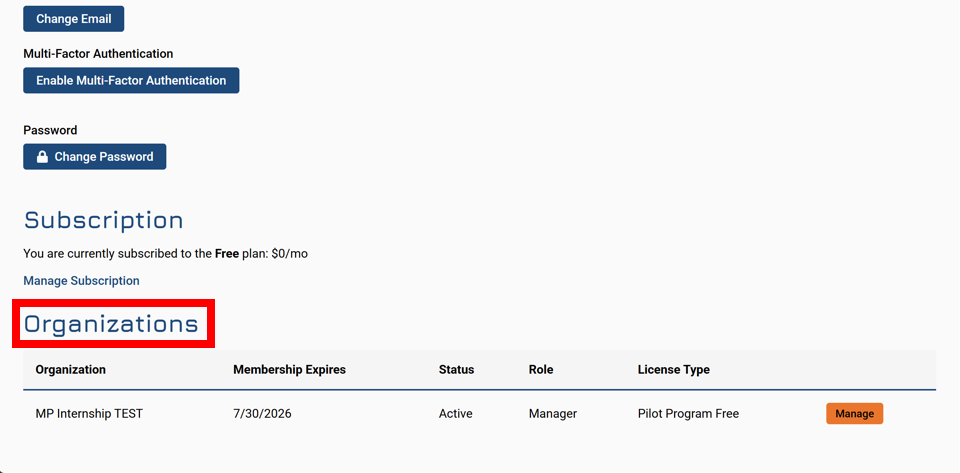
- Scroll to Organizations.
For each organization, you’ll see its name, membership expiry, status, your role, and license type. If you’re a manager of an active organization, a Manage button appears next to it.
Join an Organization #
There are two common ways to join:
By Invitation
A manager sends an invitation to your email. Open the invite link in that email and follow the prompts to join. If you don’t already have an account, you’ll create one as part of joining; if you do, you’ll be added after signing in.
By Matching Email Domain
Some organizations allow people whose email is on an approved domain (for example, university.edu) to request to join. After you verify your email, you can be added once a manager approves.
Your membership uses a seat on one of the organization’s licenses and may have an expiration date. When a membership or its license expires, access tied to that organization ends.
For Managers #
Open your organization
- Open the user menu and choose Managed Orgs (or use Manage from the Organizations list on your Account page).
- Open your organization.
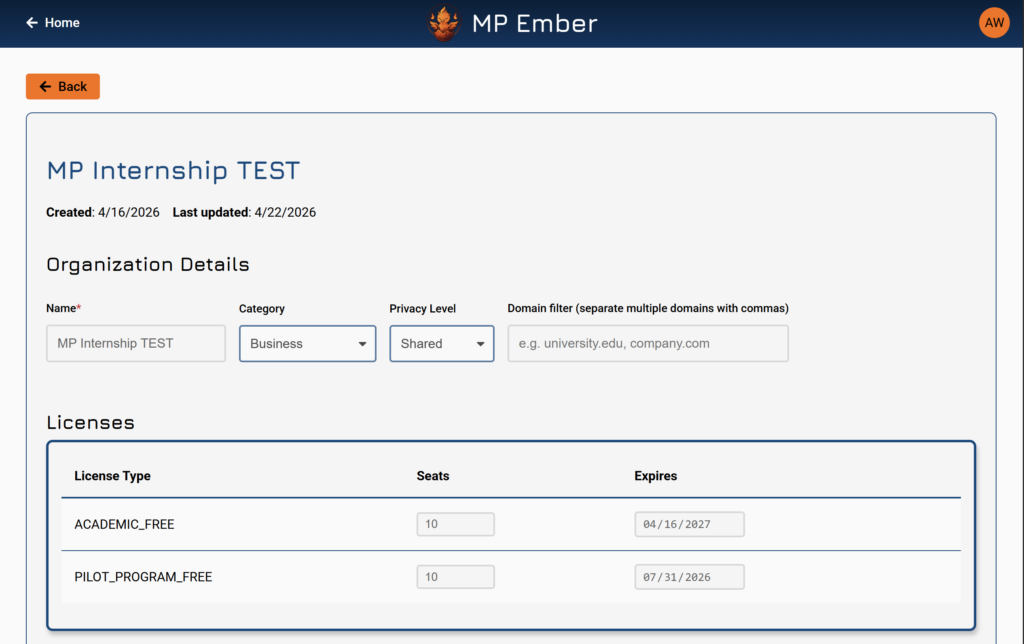
The list shows each organization’s license types, total seats, member count, and key dates. You can filter by name or license type and sort the list.
- Open the user menu and choose Managed Orgs (or use Manage from the Organizations list on your Account page).
- Open your organization.
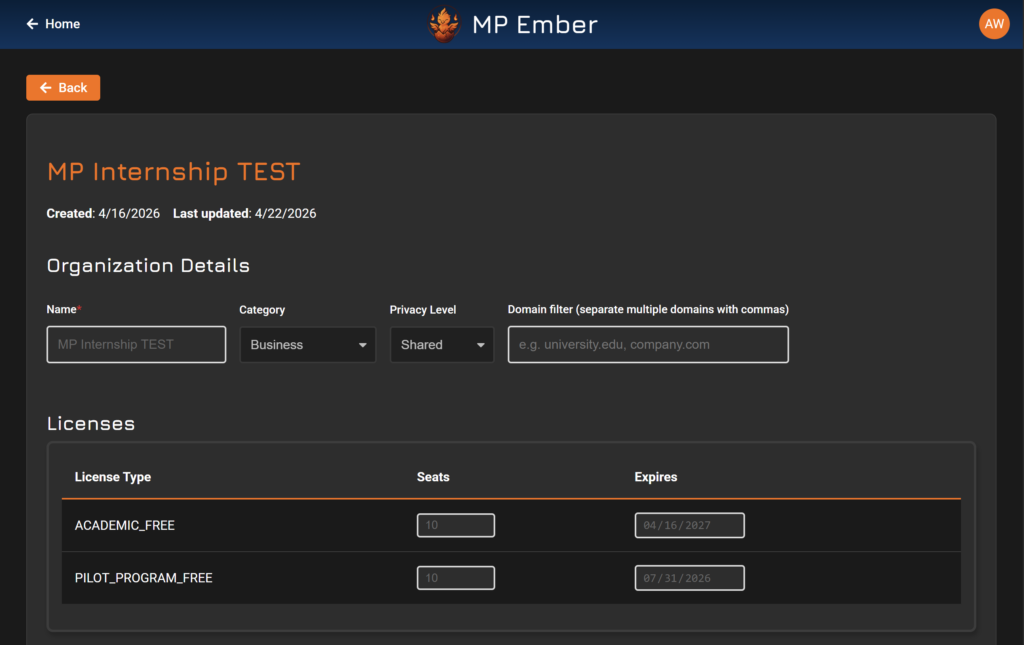
The list shows each organization’s license types, total seats, member count, and key dates. You can filter by name or license type and sort the list.
Managing Members #
Inside an organization you’ll see two groups: Managers and Members. Each has its own table with name, email, license, status, expiry, and last login, plus sorting and a status filter (All / Accepted / Pending).
Invite a Member or Manager #
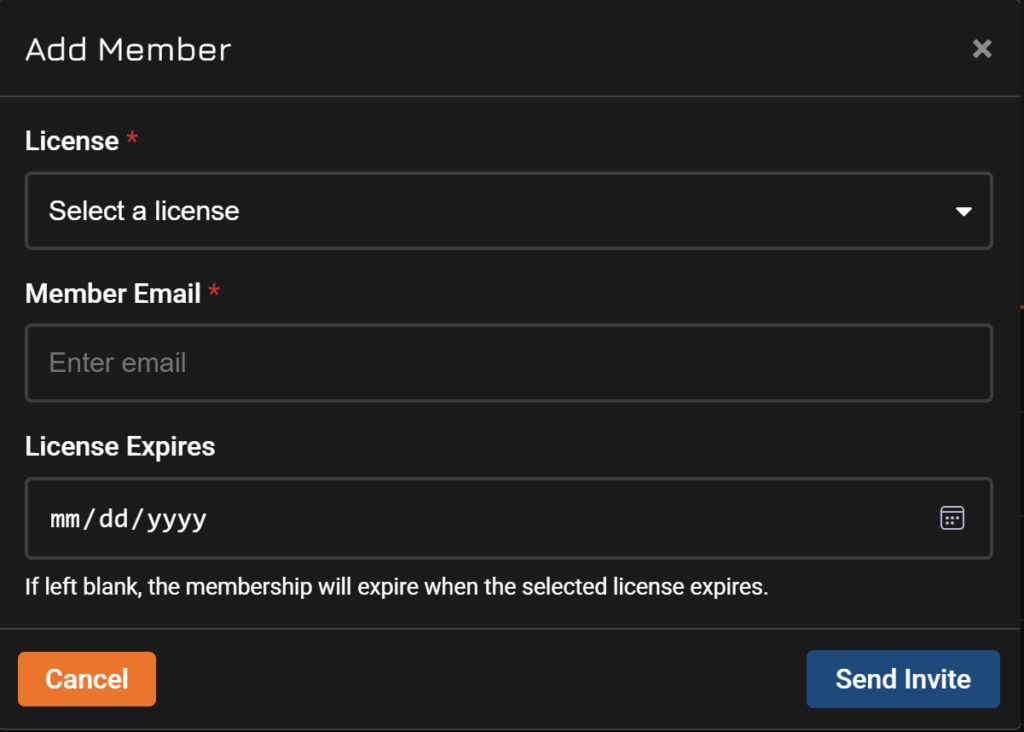
- Click Add Member (or Add Manager) above the relevant table.
- Choose a license (only licenses with available seats are listed).
- Enter the user’s email.
- Optionally set a License Expires date. If left blank, the membership expires when the chosen license expires.
- Click Send Invite.
An invitation email is sent. A one-time invite link is also shown — share it manually if the email doesn’t arrive. (You can copy an invite link later from a pending member’s Actions as well.)
If no license has an available seat, you’ll be prompted to free up or expand a license before inviting.
Invite a Member or Manager #
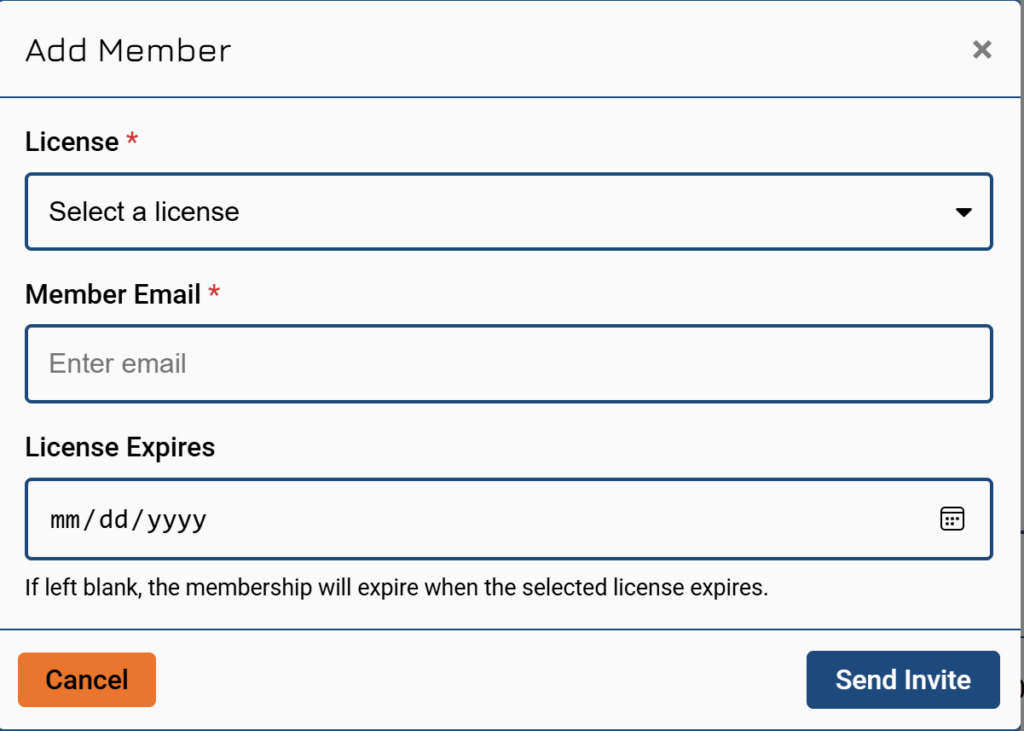
- Click Add Member (or Add Manager) above the relevant table.
- Choose a license (only licenses with available seats are listed).
- Enter the user’s email.
- Optionally set a License Expires date. If left blank, the membership expires when the chosen license expires.
- Click Send Invite.
An invitation email is sent. A one-time invite link is also shown — share it manually if the email doesn’t arrive. (You can copy an invite link later from a pending member’s Actions as well.)
If no license has an available seat, you’ll be prompted to free up or expand a license before inviting.
Manage Existing Members #
Use the Actions menu on a member’s row:
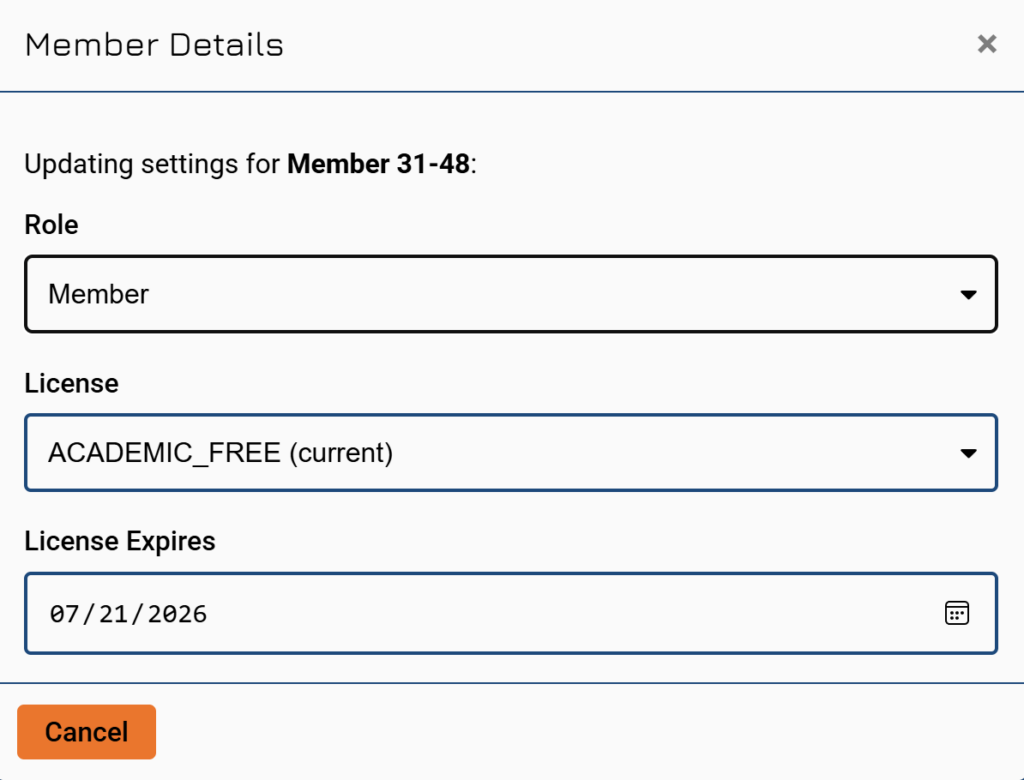
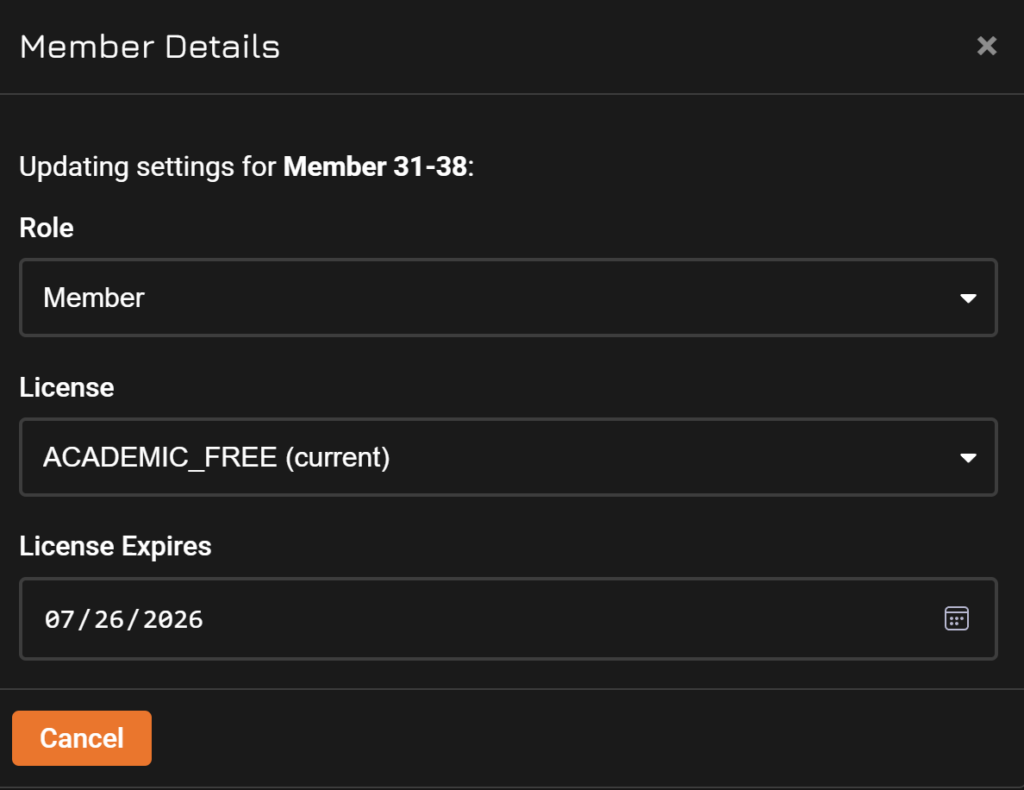
- Edit — open Member Details to change the person’s role, license, or membership expiration.
- Remove — remove the member from the organization.
For people who haven’t accepted yet (pending):
- Resend Invite — send the invitation again.
- Cancel Invite — withdraw the invitation.
Use the Actions menu on a member’s row:
- Edit — open Member Details to change the person’s role, license, or membership expiration.
- Remove — remove the member from the organization.
For people who haven’t accepted yet (pending):
- Resend Invite — send the invitation again.
- Cancel Invite — withdraw the invitation.
Member Status Values #
| Status | Meaning |
|---|---|
| Invite Sent | Invitation sent, not yet accepted |
| Active | Active member |
| Membership Expired | The member’s membership end date has passed |
| License Expired | The license backing the membership has expired |
| Expired | Invitation or membership is no longer valid |
| Removed | Member was removed |
General Notes about Organizations #
- Seats are limited by each license; expiring licenses are highlighted in the organization list.
- To leave or change your own membership, contact a manager of that organization.
